
Commands#
This chapter describes the command line interface for the Z-set package. While most commands can be executed within the Zmaster program, using the command line may be preferred in many instances. Benefits of command line execution include: Separate management of screen output to a terminal window or a separate file and Easy incorporation into scripts. For Linux, its use is almost a necessity because the Zrun execution in Zmaster does not run in a separate thread.
Linux platforms
For Linux, all the commands described in this chapter are
scripts that can be used for multiple platforms. The scripts are
located in the directory $Z7PATH/bin, which is automatically added to
the $PATH variable in the configuration scripts ($Z7PATH/lib/Z7_cshrc or
$Z7PATH/lib/Z7_profile).
Open a terminal.
Navigate to the directory containing the simulation files using the
cdcommand.Run the commands
For example, the execution of the problem.inp file, located in /path/to/user/folder/,
and visualization of the FEM results using Zmaster is carried-out using the following commands:
cd /path/to/user/folder/
Zrun problem.inp
Zmaster problem.inp
Windows platforms
There exist two methods to run executable commands in Windows machines.
- Method 1: Launch via a cmd prompt
The executables commands are located in the directory
%Z7PATH%\win64which should be added to the user or system%path%variable, set by the installation program or on the computer’s environment variable editor.- Method 2: Drag files onto executables commands
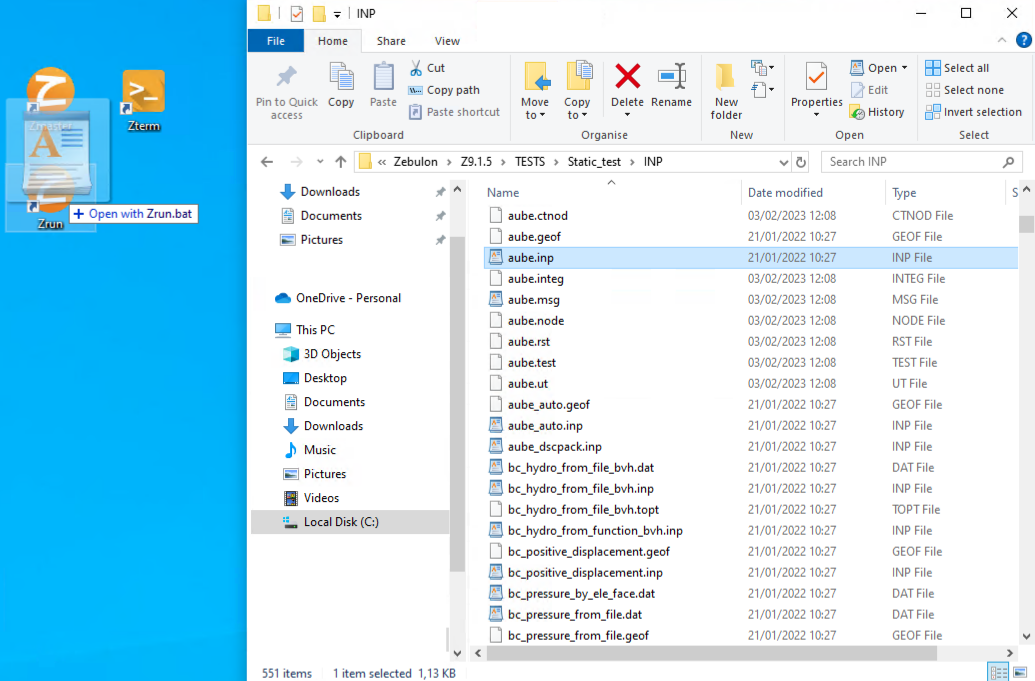
The user can drag files on the exectubles located in the directory
%Z7PATH%\win64. Alternatively, one can create shortcuts for the executables and place them wherever convenient, and then drag files onto these shortcuts to launch the program with those files. A batch file%Z7PATH%\INSTALL_WIN64.batis provided in the distribution to create shortcuts forZmaster ,
, Zrun and a terminal (called
 Zterm ) pre-configured with some
environment variables.
) pre-configured with some
environment variables.
Servers/License
Launch a license server and manage license files