
Variables management#
Variables#
The Variables command allows to create, delete and modify
optimization variables and history items. The history items
can be created to store the current state of the variables values,
and used to regenerate the database at any point with the previously
saved values.
Two modes of operation are available, the Creation Mode and the
Panel Mode. A button at the bottom on the left of each dialog allows
to switch from one mode to the other. When the Variables command is
hit for the first time, the application opens the Variables dialog
in Creation Mode. If the dialog is closed, a new click on the
Variables command will open the dialog in the last mode selected.
Creation mode dialog#
The dialog is represented hereafter. Variables previously defined
are inserted into an appropriate selection box, while history items
are integrated into a selection tree.
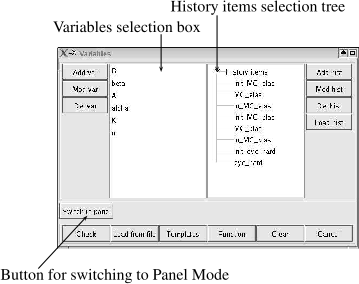
Various sub-commands can be activated from this dialog, as described in the next pages.
Add and Mod var commands#
Both commands pop up the Add/Mod var dialog. A variable must
be selected in the Variables selection box before clicking on the
Mod var command.
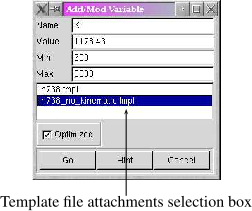
The variables attributes (name, current and min/max values) can be
modified in the corresponding textfields. The Optimized checkbox can
be used to activate/deactivate optimization of the variable, without
changing anything to the optimization items defined (as described in Optimizations ) in the application.
The Template file selection box (see Templates ) can be used to attach
the variable to an arbitrary number of template files ; note that a
variable can be attached to several template files.
Modifications are assigned to the variable database only after the
Go button is hit. An automatic check is performed to verify that the
variable is actually defined in the template files to which it is
attached. An error message is printed otherwise, and the update of the
variable database is canceled.
The Hint button can be used to initialize the current and min/max
values by reading the realistic corresponding values in the
typical_coef_values file located in the $Z7PATH/lib/materials
directory.
The Cancel button closes the dialog without modification.
Del var command#
All variables selected in the Variables selection box
are deleted from the variables database.
Add hist command#
This command is used to save the current state of the variables
database into an history item. The Add/Mod history dialog is
opened that includes text fields containing the current values of all
design variables defined in the database. The history item is
given a default name that should be changed in the corresponding text
field to something more meaningful to the user. A text area allows
user’s comments. The history database is only updated after the Go
button is clicked. The Cancel button closes the dialog without
modification.
Note that the variables database can be re-initialized at any time
with the values stored into an history item, by selecting the
corresponding item in the History items selection tree, and
clicking on the Load history button of the
Variables Creation Mode and Variables Panel Mode dialogs.
Mod hist command#
An history item must be selected before in the
History items selection tree (see Variables selection box).
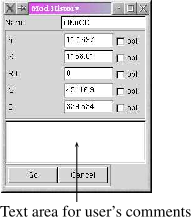
A window pops up allowing to change the name, or the values of variables stored in this
history item. A text area allows user’s comments. The history
database is only updated after the Go button is clicked. The
Cancel button closes the dialog without modification.
Del hist command#
An history item must be selected before in the
History items selection tree (see Variables selection box). The selected item is removed
from the database.
Load hist command#
This command re-initializes the variables current values with the
ones stored in the history item selected in the
History items selection tree.
Check command#
This command verifies the coherency of the template file attachments
assigned to the optimization variables. In particular the check
covers the following points :
The application verifies that each
variableis indeed defined in the template file to which it is attached. This check is also performed each time avariableis updated by theAdd/Mod var commands, but if the template file definition is changed afterwards the attachment may no longer be valid.The application checks that all
variabledefinitions in active template files (ie. those attached to at least onevariable) are resolved by an attachment to avariable.
Load file command#
This command can be used to load a variables database from :
An input template file. In this case, all
variablesdefined in the template file (with the \(?var\) syntax, see Templates ) are automatically created in thevariablesdatabase with the proper attachment.Variablevalue and min/max bounds are set to the ones found in the file$Z7PATH/lib/materials/typical_coef_values. Afterwards, those defaults should be manually changed by the user.An input material file. In this case, for each coefficient in the material file (ie. a character string followed by a floating point numerical value), a
variableis created in the database and the numerical value read in the file is assigned. An appropriate template file, whose name is obtained by adding a.tmplextension to the input material file name, is also automatically created in the current working directory and attached to all created variables. Care must be taken by the user that this mechanism does not erase a pre-existing file, since no check is attempted in the current version.Variablesmin/max bounds are set to the ones found in the file$Z7PATH/lib/materials/typical_coef_values.
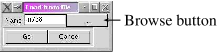
A new dialog is opened by this command, where the user must define the name of the input file. The browse button can be used to look for an available file in the directory architecture.
Templates command#
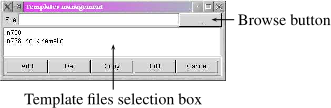
This command allows some management of the template files attached to
variables. The Templates management dialog includes a selection
box with all the active template files, ie. files with a \(.tmpl\)
extension in the current working directory.
The Templates management dialog sub-commands are summarized
hereafter :
Add command: this command activates a template file whose name is specified in theFiletextfield. The browse button can be used to select a file in a directory different from the current working directory. In this case, the selected file is copied to the working directory. If a file whose name is specified in theFiletextfield does not exist in the current working directory, a new empty file is created. Then theEdit commandcan be used to modify the file content.Del command: this command removes the template file selected in the selection box from the current working directory.Copy command: this command copies the template file selected in the selection box to a file whose name is specified in theFiletextfield.Edit command: this command edits the file selected in the selection box.Cancel command: this command closes theTemplates management dialog.
Function command#
This command may be used to create or modify function items in the
database by opening the Function management dialog. A window pops up
allowing to define the function parameters. The dialog is shown in the
next figure.
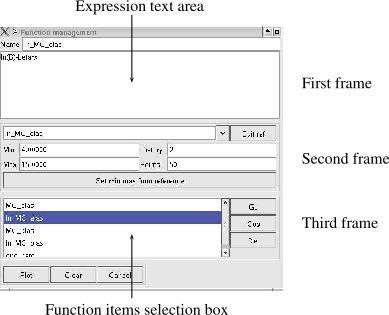
Function name may be defined in the Name textfield, and function
expression may be written in the function expression text area.
The second frame allows to define the plot parameters of
function items. A combo box filled with the experiment items
defined beforehand by means of the Experiments command (see Experiments),
where a particular item can be selected to be used as a reference curve
drawn on the same plot as the function curve. The Edit ref button
edits the experimental data corresponding to the experiment item
selected in the combo box. The Min and Max textfields allow to
define the min and max values of the function abscissa. The History
textfield corresponds to the number of more recent function simulations
that will be drawn on the same plot (default value is 2). This type of
plots is a convenient way to visualize for instance the influence of
coefficients on the simulated response. The Points textfield defines
the number of points the function curve will be constituted of (default
value is 20). The Set min max from reference button allows to use
the min and max values of the experimental data to set the min and max
values of the function abscissa.
The third frame includes functions handling. The selection box on the
left lists function items, on which the sub-commands on the right
can be activated. The Go button updates the database with the
definition of the function item currently edited, by creating or
modifying it. Note that the Go command also updates and checks the
definition (attachments for example) of the variables implied by the
function expression, or create in the database the new variables implied
by the function expression. Using the Cop button, the user can
create a new item by copying the selected function item (without
suppressing it). The copied item then appears at the end of the
selection box. The Del button deletes from the database the selected
function item and checks the definition of the variables implied by
the function expression.
The Plot button draws the selected function item and its
reference experimental curve. Plot is tiled in the graphics area across
the X-Y plane. The Clear button clears the current function item
selected in the selection box. The Cancel button closes the
Function management dialog without further modification to the
database.
Clear command#
This command clears at the same time selections in
Variables selection box and in History items selection tree (see Variables selection box).
Go to panel command#
This command closes the Variables Creation mode dialog and opens the
Variables panel dialog (see Variables panel dialog).
Cancel command#
This command closes the Variables Creation mode dialog without
further modification to the database.
Variables panel dialog#
Once a valid variables database has been created in
Creation mode, the Panel mode is a much more convenient way to
update the variables values, and can also be used to launch
simulations and optimizations.
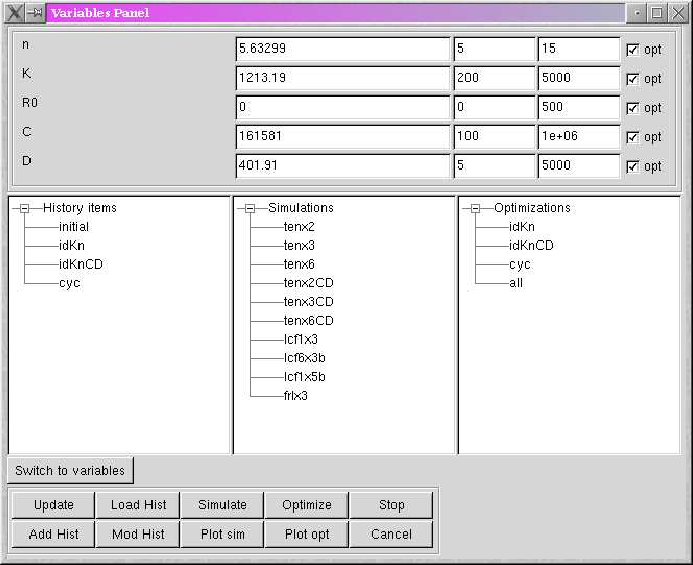
As represented hereafter, the dialog includes textfields for all
variables available in the database. Those can be used to change the
current and min/max values. A check box is also included to
activate/deactivate the treatment of the variable during
optimizations.
Switch to variables command#
This command closes the Variables panel dialog and opens the
Variables Creation mode dialog (see Variables creation mode).
Update command#
The user can use this command to update at the same time variables,
and history, simulation and optimization items selection
tree from the Variables Panel dialog.
Add hist command#
This command is used to save the current state of the variables
database into an history item. The Add/Mod history dialog is
opened that includes text fields containing the current values of all
design variables defined in the database. The history item is
given a default name that should be changed in the corresponding text
field to something more meaningful to the user. For each variable, a
check box is also included to activate/deactivate the treatment of the
variable during optimizations. A text area allows user’s comments.
The history database is only updated after the Go button is clicked.
The Cancel button closes the dialog without modification (see Variables/Add hist).
Load hist command#
This command re-initializes the variables current values with the
ones stored in the history item selected in the
History items selection tree (see Variables/Load hist).
Mod hist command#
An history item must be selected before in the
History items selection tree (see fig:variables). A window pops up allowing to
change the name, or the values of variables stored in this
history item. For each variable, a check box is also included to
activate/deactivate the treatment of the variable during
optimizations. A text area allows user’s comments. The history database
is only updated after the Go button is clicked. The Cancel
button closes the dialog without modification (see Variables/Mod hist).
Simulate command#
Clicking on this button launches all simulations selected in the
Simulation items selection tree of the
Variables Panel Mode dialog (see Variables panel dialog).
Plot sim command#
This command plots all curves selected in the Simulation items
selection tree of the Variables Panel Mode dialog (see Variables panel dialog).
Optimize command#
Clicking on this button launches the optimization selected in the
Optimization items selection tree of the
Variables Panel Mode dialog (see Variables panel dialog).
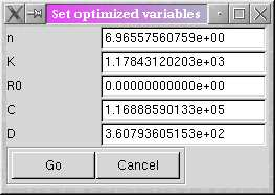
At the end of the optimization, a window is popup showing the values
found by the optimizer, and the Go button must be clicked if the
user wants to update the database with the optimized values. Otherwise,
variables are left unchanged.
Plot opt command#
This command plots all comparisons defined in the optimization item
selected in the Optimization items selection tree of the
Variables Panel Mode dialog (see Variables panel dialog).
Stop command#
This command can be used to stop a running optimization. The above
Set optimized variables dialog is popup, showing the best values
found by the optimizer before optimization was canceled. As in the
previous case, the update of the database with the optimized values is
only done if the Go button is clicked.
Cancel command#
This command closes the Variables Panel dialog without further
modification to the database.