
Elastoplastic analysis of a tube under pressure#
Highlights
Mesh a 2D geometry using Zmaster GUI
Create the material file input using Zair GUI
Create the input file using Zair GUI
Launch and visualize the results of a finite element computation
Compute the strain/stress components at the cylindrical coordinates
Output results in ASCII files
Problem specification#
The study proposed in this tutorial focuses on the analysis of an infinite tube under internal pressure. This tube is subjected to a uniform internal pressure of \(P = 60 MPa\). Since it is an infinite tube, a two-dimensional model will be considered which consist of a cross-sectional slice.
The Finite Element modeling will be performed using plane strain conditions. Due to the geometric and loading symmetries of the structure, only a quarter of the thick tube’s cross-section will be modeled.
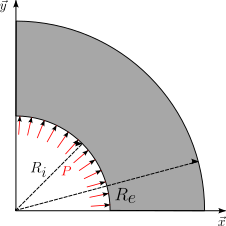
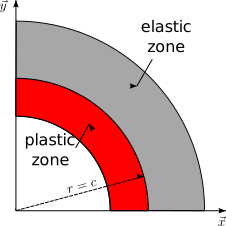
Fig. 45 The quarter of the thick tube’s cross-section#
Parameters |
Numerical value |
|---|---|
internal pressure |
60 MPa |
yield stress \(\sigma_0\) |
100 MPa |
inner radius \(R_i\) |
100 mm |
outer radius \(R_e\) |
200 mm |
Young’s modulus |
205000 MPa |
Poisson’s coefficient |
0.3 |
density |
8.08e-9 kg/mm\(\,\!^3\) |
Analytical solutions#
The analytical solution of this problem is given in [T1].
In the plastic region (\(R_i \leq r \leq c\)):
In the elastic region (\(c \leq r \leq R_e\)):
Mesh generation#
To create the tube geometry with Zmaster:
Run the command
Zmaster tube.mastin a terminal to open the Zmaster interface. This command will create a filetube.mastin which the geometry will be stored in text form.Click on
 \(\longrightarrow\)
  to create the points that define the geometry,
which in this case is a quarter of a disk.
to create the points that define the geometry,
which in this case is a quarter of a disk.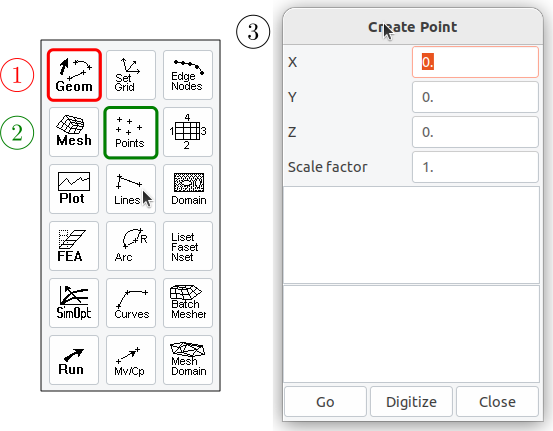
Enter the coordinates of a point (X, Y, Z), then click
GOto create the point. Repeat the process for all points.#Points X Y Z 1 100. 0. 0. 2 200. 0. 0. 3 0. 200. 0. 4 0. 100. 0. 5 0. 0. 0.
Click on
View,Auto-centerto view all points.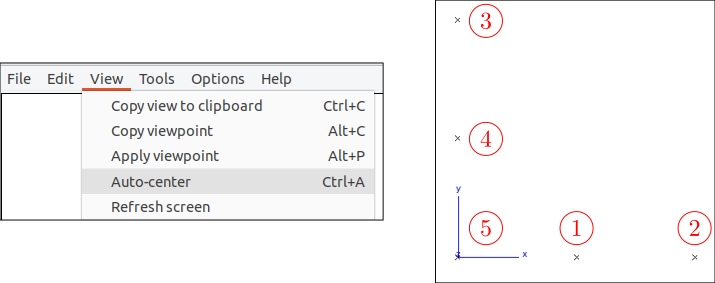
Click on
\(\longrightarrow\)  to create lines
Choose
2 points, then clickGo.Click on points 1 and 2 to define line 1, which will be created.
Next, click on points 3 and 4 to define line 2 and create it.
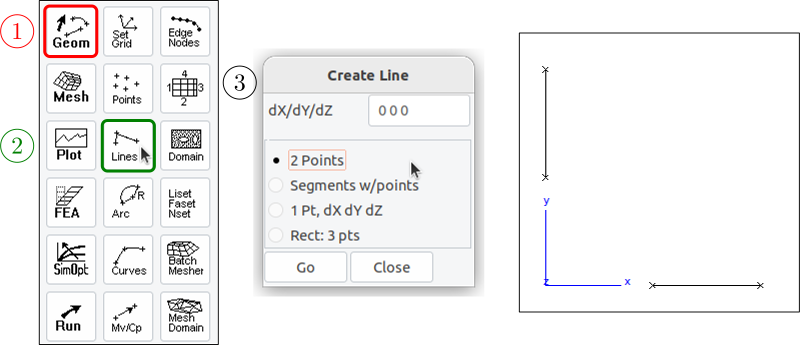
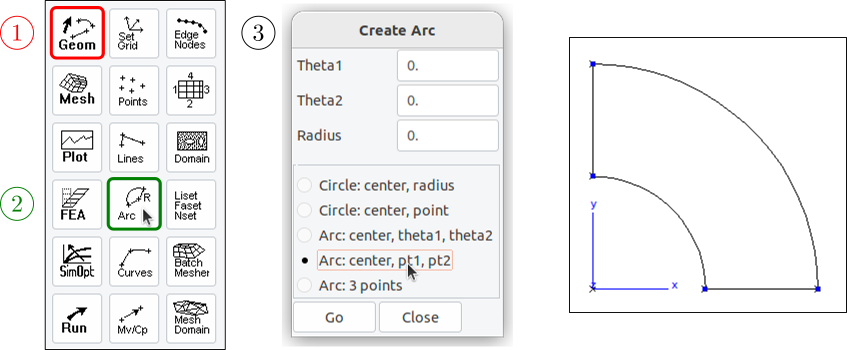
To create the inner and outer circular arcs, click on
\(\longrightarrow\)  .
In the
.
In the Create Arcwindow, selectArc: center, pt1, pt2to create the arcs using the center and two points, then confirm withOK.Click on the center point no. 5 (0,0,0) then point no. 1 and point no. 4 to create the inner arc.
Click on the center point no. 5 (0,0,0) then point no. 2 and point no. 3 to create the outer arc.
Save the progress by clicking on
File,Save.
Note
All these steps help to populate the
tube.mastfile. If you open it with a text editor, you will notice that there is a section for each created entity (points, lines, arcs).You can achieve the same result by writing the keywords for each entity and opening it with the command
Zmaster tube.mastto visualise the result.You can modify the properties of the created entities directly in the
tube.mastfile, for example, it is possible to change the coordinates of the points, the radii of the arcs, etc.
The content of the tube.mast file:
****master
 ***geometry
  **point point0
   *position 1.000000000000000e+02 0.000000000000000e+00 0.000000000000000e+00
  **point point1
   *position 2.000000000000000e+02 0.000000000000000e+00 0.000000000000000e+00
  **point point2
   *position 0.000000000000000e+00 2.000000000000000e+02 0.000000000000000e+00
  **point point3
   *position 0.000000000000000e+00 1.000000000000000e+02 0.000000000000000e+00
  **point point4
   *position 0.000000000000000e+00 0.000000000000000e+00 0.000000000000000e+00
  **line line0
   *p1 point0
   *p2 point1
  **line line1
   *p1 point2
   *p2 point3
  **arc arc0
   *p1 point0
   *p2 point3
   *center point4
   *data   1.000000000000000e+02 0.000000000000000e+00 1.570796326794897e+00
  **arc arc1
   *p1 point1
   *p2 point2
   *center point4
   *data   2.000000000000000e+02 0.000000000000000e+00 1.570796326794897e+00
 ***plotting
  **default_options 1 0 1
****return
Structure meshing#
To mesh the previously created geometry, follow these steps:
If the Zmaster interface is closed, open the geometry file using the command
Zmaster tube.mast.Start by specifying the desired number of nodes on the geometry boundaries (inner and outer) by clicking on
\(\longrightarrow\)  , and entering the desired number
of nodes for each boundary. Each pair of opposite sides must have the same number of nodes
(for example, 20 for both opposite lines and 40 for both opposite arcs).
, and entering the desired number
of nodes for each boundary. Each pair of opposite sides must have the same number of nodes
(for example, 20 for both opposite lines and 40 for both opposite arcs).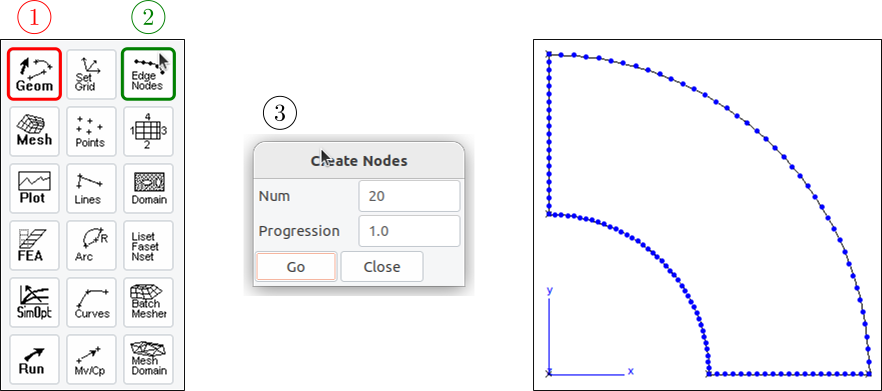
Before meshing the quarter of the disk, you must choose the desired mesh type: structured or free.
In the case of a
structured mesh:Click on
\(\longrightarrow\)  .
.Choose the element group name
Elset, element type (c2d), linear or quadratic elementsQuadratic, normal or reduced integrationNormaland, since the mesh contains two linear sides,Sides 2 4 linear.Click
Start, then select the boundaries in an order such that the lines are numbered 2 and 4 (for example, in this order: 1-inner arc, 2-line #1, 3-outer arc, and 4-line #2).Click on
\(\longrightarrow\)  to mesh the geometry.
Click on
 to show the mesh.
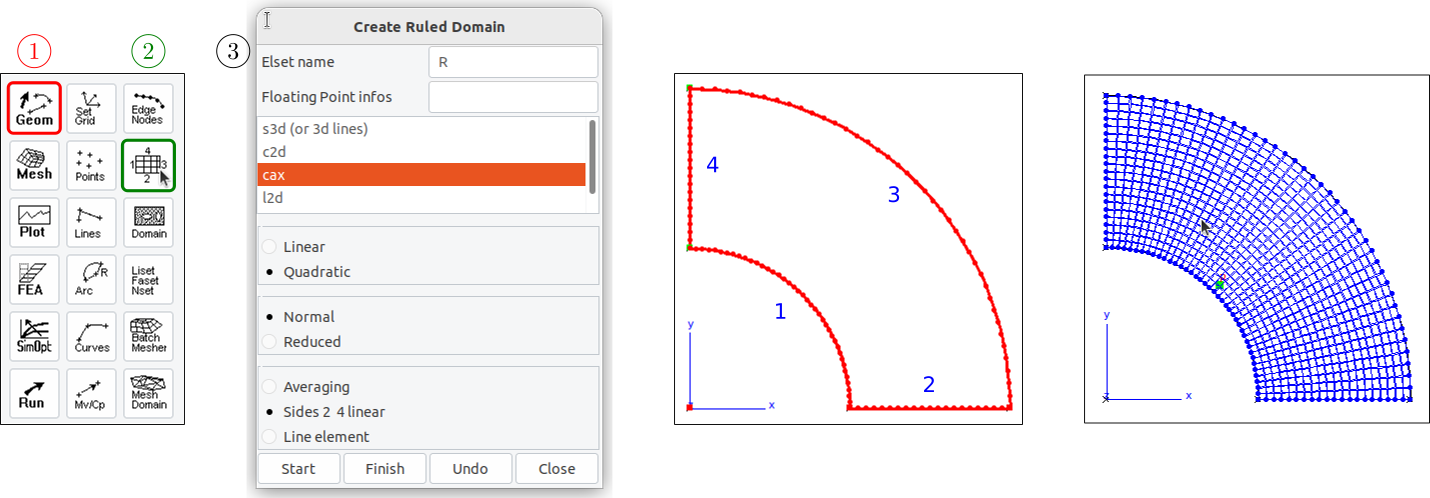
In the case of a
free mesh:Click on
\(\longrightarrow\)  .
.Choose the Elset name, element type (
c2d), linear or quadratic elements, normal or reduced integration, andDelaunay Triangles.Click
Start, then select the boundaries (no specific order required for the lines).Click on
\(\longrightarrow\) to mesh the geometry.Click on
to show the mesh.
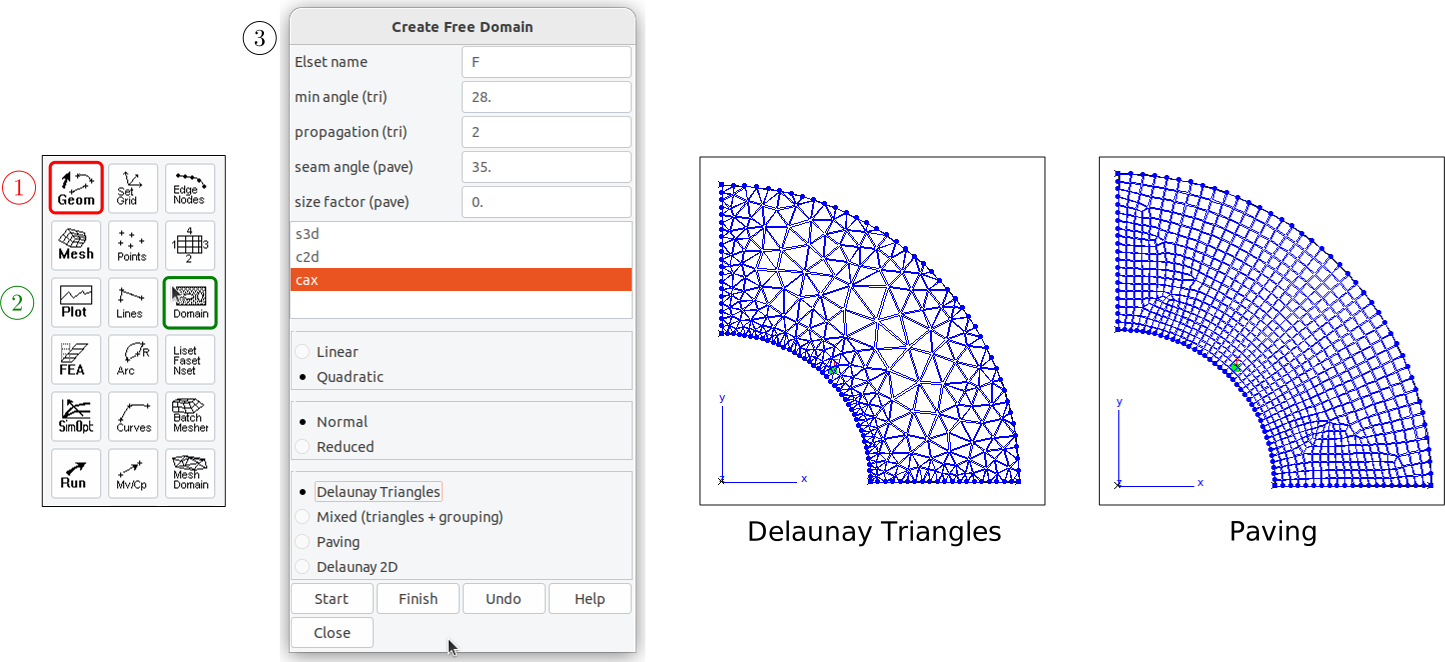
Note
All these steps populate the
tube.mastfile and create atube.geoffile, which contains all the nodes and elements of the created mesh.If you open the
tube.mastfile with a text editor, you will notice that additional sections have been added, defining the meshing domain and the type of mesh (structured or free) and the number of nodes in each entity: lines (*cuts 20) and arcs (*cuts 40).You can obtain the mesh file
tube.geofby adding the previous sections and running the commandZrun -B tube.mastin a terminal.You can modify the mesh characteristics in
tube.geofdirectly from thetube.mastfile; for example, it is possible to change the number of nodes for each entity with (*cuts 20), the type of elements, etc. Then, run the commandZrun -B tube.mastto create the mesh in thetube.geoffile.
Additional sections in the tube.mast file :
**domain domain1 Ruled0
 *name R
 *element c2d8
 *method 1
 *b1 arc0
 *b2 line0
 *b3 arc1
 *b4 line1
Modified sections :
**line line0
 *p1 point0
 *p2 point1
 *cuts 20     % added line

**arc arc0
 *p1 point0
 *p2 point3
 *cuts 40     % added line
 *center point4
 *data   1.000000000000000e+02 0.000000000000000e+00 1.570796326794897e+00
The content of the tube.geof file:
***geometry
 **node
  2521 2
  1 -3.828568698926949e-14 1.000000000000000e+02
  2 3.925981575906801e+00 9.992290362407230e+01
  …
 **element
  800
  1 c2d8 1 44 2 48 43 166 42 45
  2 c2d8 2 47 3 51 46 169 43 48
  …
***group
 **elset R
  1 2 3 4 5 6 7 8 9 10 11 12 13 14 15 16 17 18 19 20 21
  …
***return
Creation of nsets, bsets, or elsets
It will be useful to create groups of nodes (nsets), boundary groups (bsets), or element groups (elsets) to apply boundary conditions or to plot stress along a line, for example, to easily apply boundary conditions, groups of nodes will be created.
a) Using mouse selection :
The steps to define nsets and bsets :
Click on
\(\longrightarrow\)  .
Enter the name of the nset, choose the order (Linear, Quadratic, Single Point), and then click on
.
Enter the name of the nset, choose the order (Linear, Quadratic, Single Point), and then click on Start. Select the boundary forming the nset. Confirm withFinish. Repeat this operation for as many nsets as needed.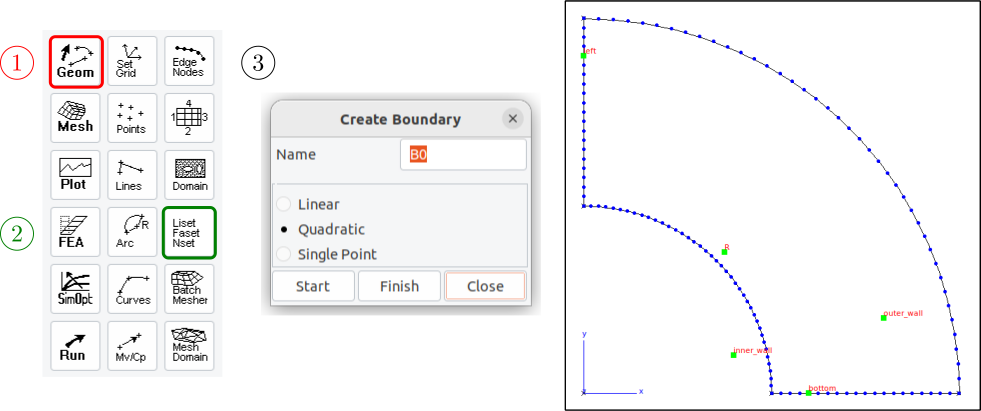
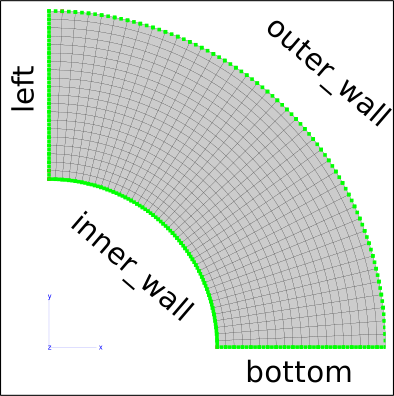
Click on
\(\longrightarrow\) , then save the mesh using File\(\longrightarrow\)Save.In order to view nsets, bsets and elsets, click on
, a window will open that
contain three list :the first is for the
nsets,the second is for the
bsets,the third is for the
elsets.
Select the entity to view and then click on
Draw.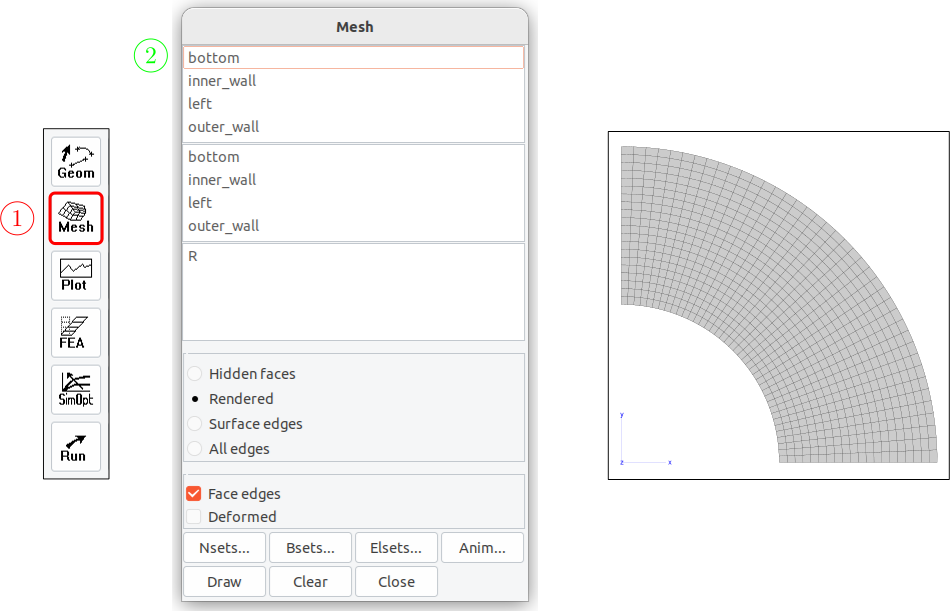
You will find below the lines added in the *.mast file.
**domain bset left
 *name left
 *order 1
 *b line1
**domain bset bottom
 *name bottom
 *order 1
 *b line0
**domain bset inner_wall
 *name inner_wall
 *order 1
 *b arc0
**domain bset outer_wall
 *name outer_wall
 *order 1
 *b arc1
Different orders, each with its corresponding definition section added to the *.mast file.
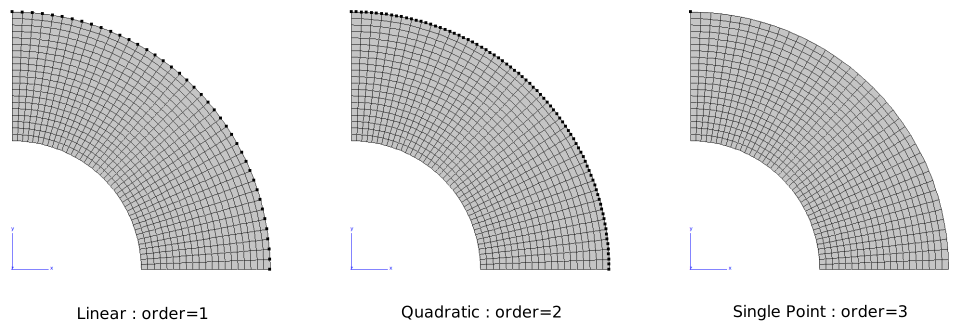
**domain bset outer_wall
 *name outer_wall
 *order 1
 *b arc1
**domain bset outer_wall0
 *name outer_wall0
 *order 2
 *b arc1
**domain bset outer_wall1
 *name outer_wall1
 *order 3
 *p point2
b) Using functions :
Display details
Functions used to define the nsets :
==========  =======================
Nsets       Definition
==========  =======================
left        x<0.001
bottom      y<0.001
inner_wall  x*x+y*y<100.*100.+0.001
outer_wall  x*x+y*y>200.*200.-0.001
==========  =======================
The steps to define nsets and bsets from nsets :
Click on
\(\longrightarrow\)  , then on
 nset. Enter the name of the nset, the function defining the nset, and then confirm withOK. Repeat this operation for as many nsets as needed.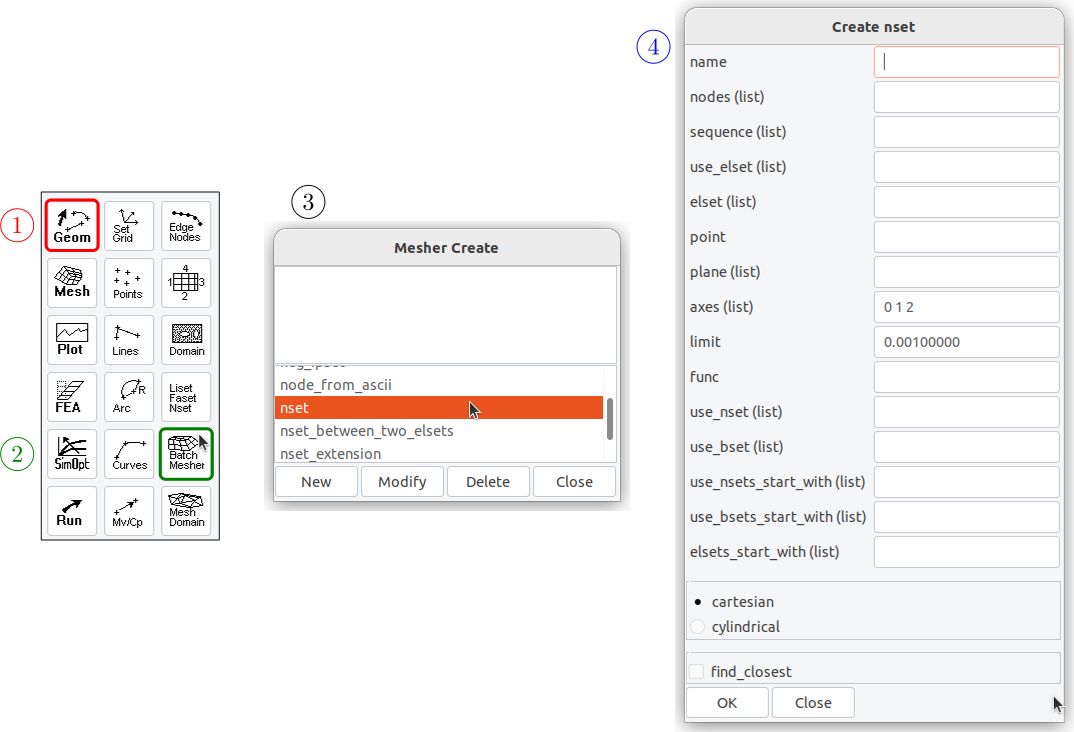
Click on
\(\longrightarrow\) , then on bset_from_nset. Enter the name of the nset, and then confirm withOK. Repeat this operation for as many bsets created from the nsets.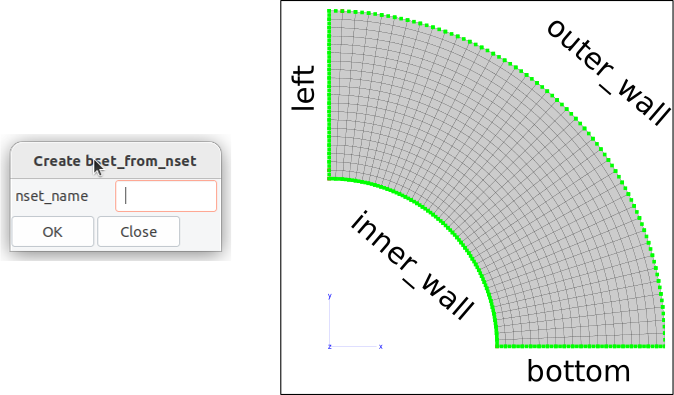
Click on
\(\longrightarrow\) , then save the mesh using File\(\longrightarrow\)Save.Note
If you open the file ‘tube.mast’ with a text editor, you will notice that there are additional sections that have been added, defining the nsets, bsets, or elsets.
If you want to modify this part, for example, the function for an nset, simply use the command ‘Zrun -B tube.mast’ to create the nsets and bsets or elsets.
The additional sections in the
tube.mastfile:***mesher **nset *type cartesian *name left *axes 0 1 2 *limit 0.00100000 *func x<0.001 ; **nset *type cartesian *name bottom *axes 0 1 2 *limit 0.00100000 *func y<0.001 ; **nset *type cartesian *name inner_wall *axes 0 1 2 *limit 0.00100000 *func x*x+y*y<100.*100.+0.001; **nset *type cartesian *name outer_wall *axes 0 1 2 *limit 0.00100000 *func x*x+y*y>200.*200.-0.001; **bset_from_nset *nset_name left **bset_from_nset *nset_name bottom **bset_from_nset *nset_name inner_wall **bset_from_nset *nset_name outer_wall
In order to view the nsets, bset and the elsets, click on
, a window will open that
contain three list :the first is for the
nsets,the second is for the
bsets,the third is for the
elsets.
Select the entity to view and then click on
Draw.
Finite element analysis#
Problem definition#
The problem definition, solution method, boundary conditions, and loads are defined in the tube.inp file using an Auto_reader interface.
Type the command
Zmaster tube.inpin a terminal to create the file where the problem data will be stored.Click on
Options,thenAuto reader.A window containing the interface will open.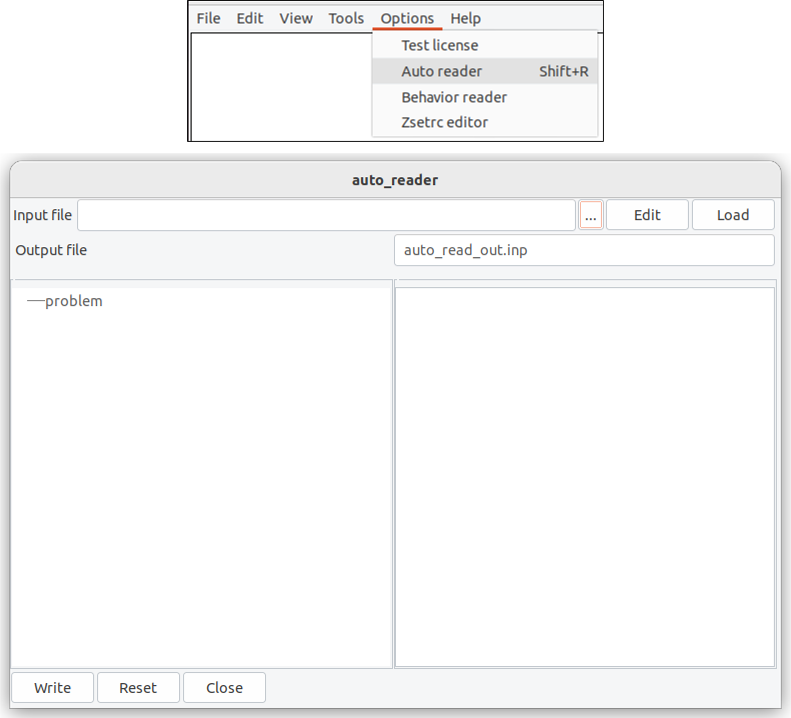
Click on
problem,useFilter selectionto search forcalcul_mechanical,then select this option and confirm withSet.A tree structure will open belowproblem,containing all the parameters for defining a mechanical calculation.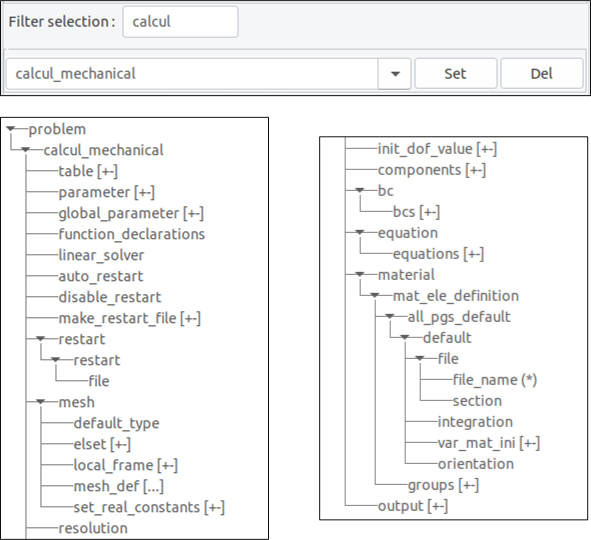
Start by defining the mesh that will be used by clicking on
mesh_def [...]undermesh,selectfile,and confirm withSet.Click onfilethat will appear undermesh_def [...]and enter the name of the mesh file, then validate withOpen. Click ondefault_typeand chooseplane_strain.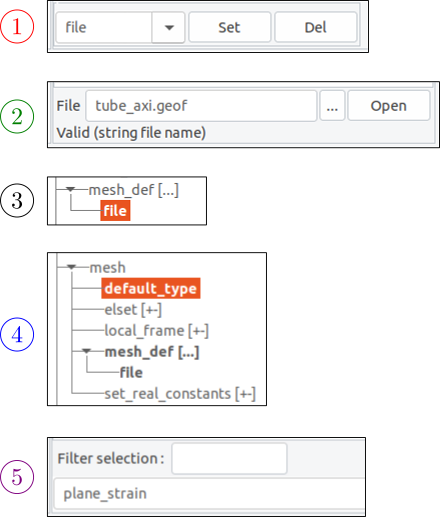
Click on
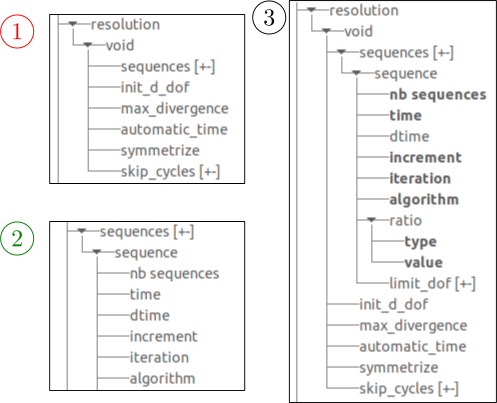
resolutionto define the parameters of the solution algorithm. Selectvoidand confirm withSet.A tree structure will appear undervoidandresolution.Click onsequences [+-],choosesequence,then click onAddand enter the following values for the different parameters undersequence:nb sequences=> 1time=> 1.0increment=> 10iteration=> 5algorithm=> p1p2p3 (update tangent stiffness at each iteration)ratio:type=> relative (default): residual divided by the norm of external reactionvalue=> 1.e-06symmetrize=> True
To define the boundary conditions and loads applied to the structure, click on
bcs [+-],chooseimpose_nodal_dofusingFilter selection,and confirm withAdd.Select the options below to constrain the displacement on the
bottomnset in the vertical direction:group (*)=> bottomdof (*)=> U2handler=>void=>coefficients=> 0.0
Select the options below to constrain the displacement on the
leftnset in the horizontal direction:group (*)=> leftdof (*)=> U1handler=>void=>coefficients=> 0.0
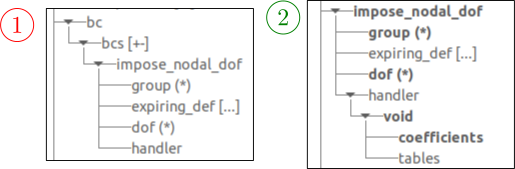
To define the loads applied to the structure, click on
bcs [+-],and choosepressure.Select the options below to apply the load on the
inner wallnset in the vertical direction:group (*)=> outer wallhandler=>void:coefficients=> -60.0tables=> tab
Click on
table [+-],choosename,and confirm withAdd.A tree structure will appear undertables,allowing you to define the evolution of the load over time in thetabtable. Select the options below:name=> tabtime=> 0.0 1.0value=> 0.0 1.0
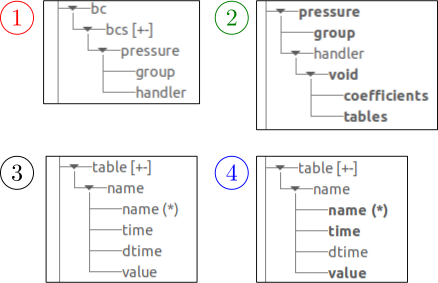
Add the previously created material file
perfectly_plastic.matby clicking onfile_name (*)underfileandmaterial.Click on...and select theperfectly_plastic.matfile, then confirm withOpentwice.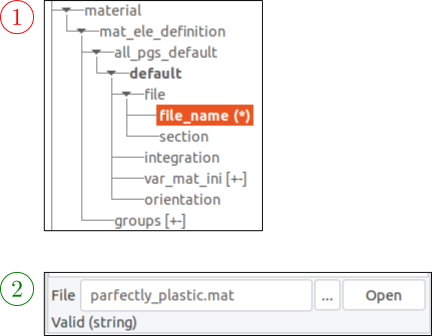
Save the problem definition by specifying the file name
tube.inpand clicking theWritebutton. Atube.inpfile will be created containing the problem data.
The content of the tube.inp file:
****calcul
 ***table
   **name tab
     *time 0.00000 1.00000
     *value 0.00000 1.00000
 ***mesh plane_strain
   **file tube.geof
 ***resolution
   **sequence 1
     *time 1.00000
     *increment 5
     *iteration 10
     *algorithm p1p2p3
     *ratio 1.00000e-06
   **symmetrize
 ***bc
   **pressure
     inner_wall  -60.0000 tab
   **impose_nodal_dof
     bottom U2  0.00000
     left U1  0.00000
 ***material
     *file perfectly_plastic.mat
****return
Material behavior#
To assign a material to the created mesh, follow these steps:
Click on
Options, thenBehavior reader. A window opens allowing you to define the material.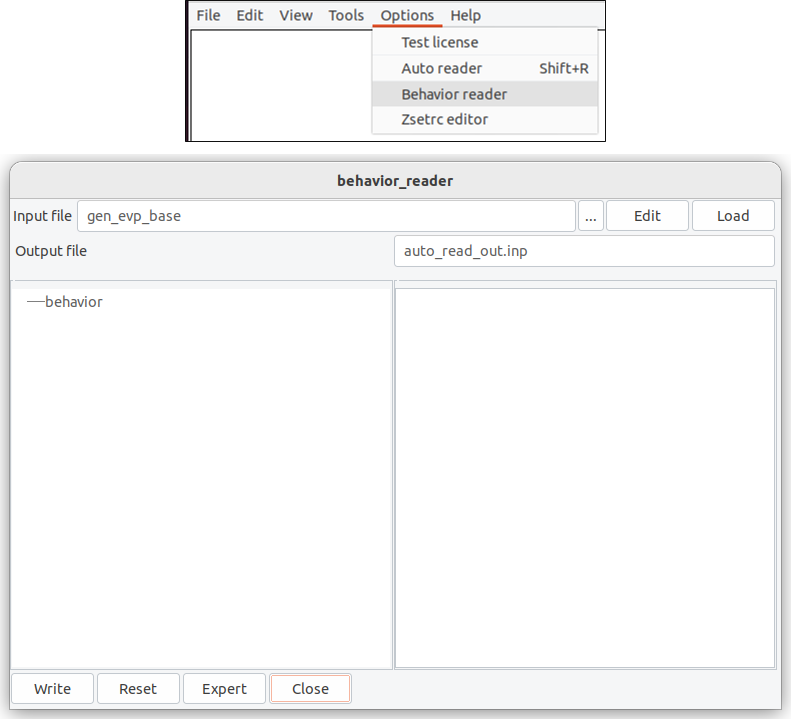
Modify the name of the
output fileby entering something likeperfectly_plastic.mat. Choosegen_evpand click onSet. A tree structure will appear on the left side containing the various parameters to define.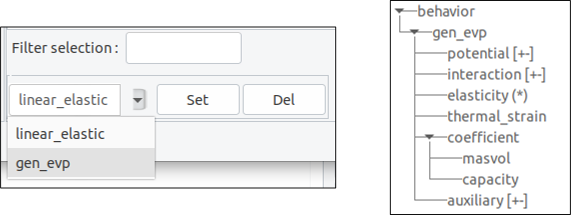
Select
elasticityfrom the tree structure, then choose the type of elasticity, for example,isotropic. Then, click onSet. The Young’s modulus and the Poisson’s ratio will be added to the tree structure underisotropicandelasticity.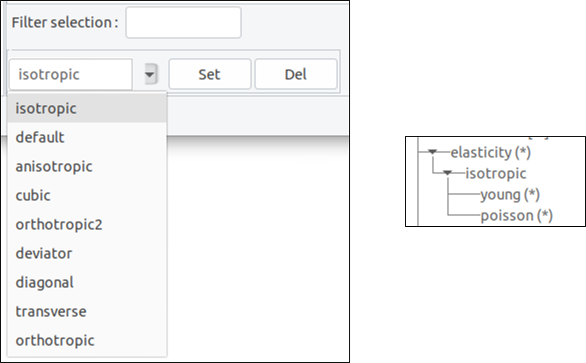
Click on
young(*)to define the Young’s modulus, then choose the application method for the modulus, such as constant, and confirm withSet.Constantwill be added belowYoung. By clicking onconstant,the value can be defined.
The Poisson’s ratio is defined in the same way, with a value of 0.3.
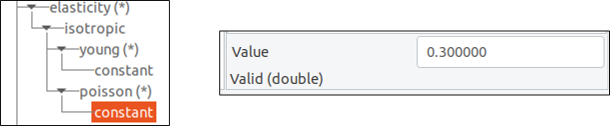
To define the material’s density, simply click on the parameter
masvolbelowcoefficient,then chooseconstant,confirm withSet,and finally enter the coefficient value as 8.08000e-09.
To achieve perfectly plastic behavior, start by defining the
potentialby clicking on it, choosegen_evpfrom the list, and then click onAdd.The potentialgen_evpwill be added to the tree structure.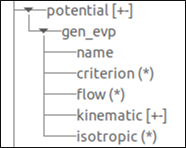
You need to define the new parameters under
gen_evp:name=> ‘ep’,criterion (*)=> ‘mises’ and confirm withSet,flow (*)=> ‘plasticity’ and confirm withSet,isotropic=> ‘constant’,R0=> ‘constant’,constant=> ‘100.0’
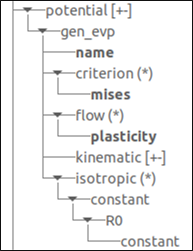
Specify the name of the file to something more descriptive, like
perfectly_plastic.mat.in theOutput filesection, then save the material behavior by clicking theWritebutton. A file namedperfectly_plastic.matwill be created in the same folder.
Note
All the parameters that have been defined are saved in the file
perfectly_plastic.mat.It is possible to define the material behavior directly without using the interface by entering the keywords and parameter values in this file with a text editor.
You can load a material file in the
Behavior_readerinterface by clicking on...to select the file to load, then confirm withOpen,and finally click onLoad.
The content of the perfectly_plastic.mat file:
***behavior gen_evp
 **potential gen_evp ep
  *criterion mises
  *flow plasticity
  *isotropic constant
   R0  100.00
 **elasticity isotropic
   young  205000.
   poisson  0.300000
 **coefficient
   masvol  8.08000e-09
***return
Note
You can plot the stress-strain curve by using the command Zsim perfectly_plastic.mat in a terminal in the same location as the perfectly_plastic.mat file.
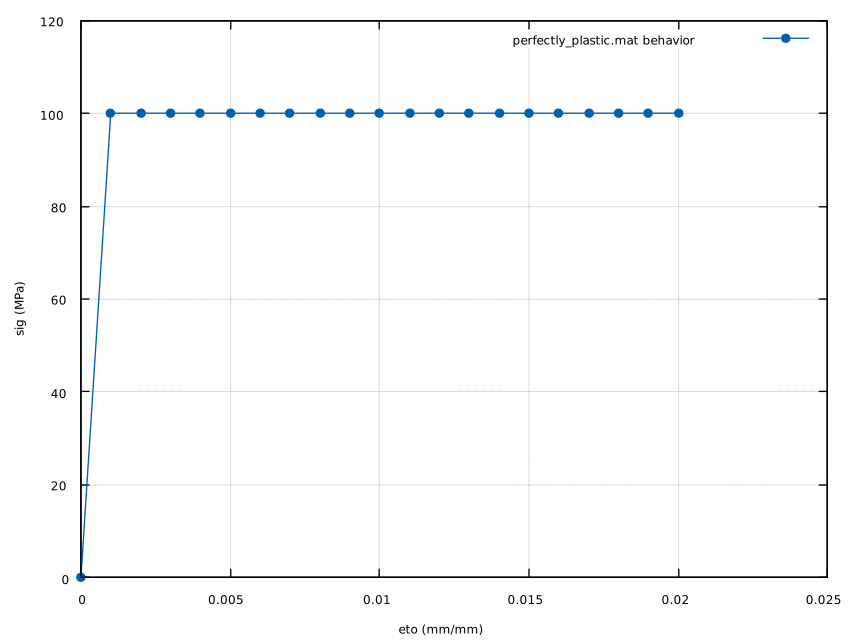
Resolution#
Click on
 , a window will open containing the command
 Zrun tubeand selectFinite element,then click onGoto start the calculation.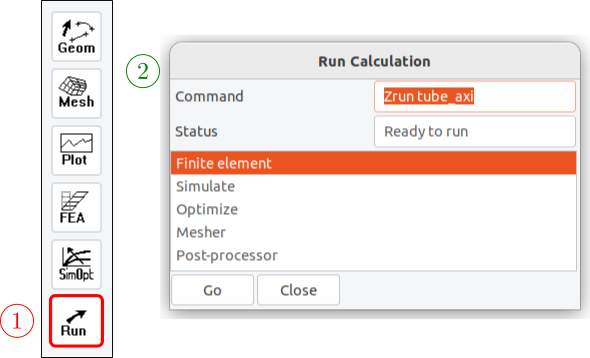
It is also possible to start the calculation using a terminal by entering the following command:
Zrun tube.inp.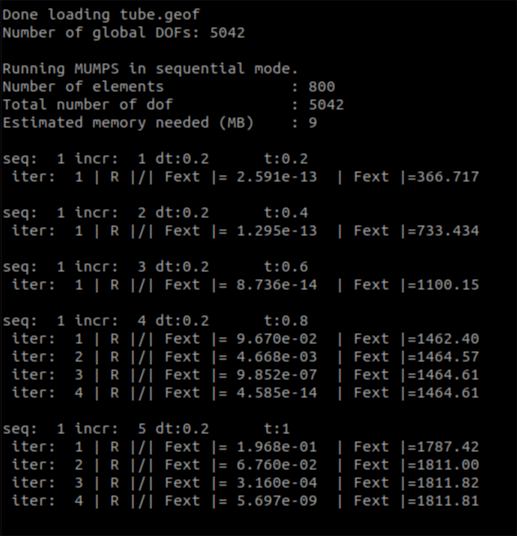
Post-processing#
Post-processing of results in a cylindrical local coordinate system
In order to get stress values in the cylindrical coordinates, one can use the following post-processing by adding it at the end of the tube.inp and use the terminal command Zrun -pp tube.inp to run it:
****post_processing
 ***global_post_processing
  **file integ
  **output_number 1-5
  **process transform_frame
   *local_frame cylindrical
    (0. 0. 0.) (0. 0. 1.)
   *tensor_variables sig
   *tensor_variables eto
****return
Results & discussions#
To display the results:
Click on
 , a
, a Resultswindow will appear containing displacements (U1, U2), reaction forces (RU1, RU2), which are node results. It also includes stresses (sigmises, sig11, sig22, etc.) and strains (epcum, eto11, eto22, etc.) which are results calculated at Gauss points.Select the result you wish to display, then click
Drawor double-click to display the desired result on the mesh.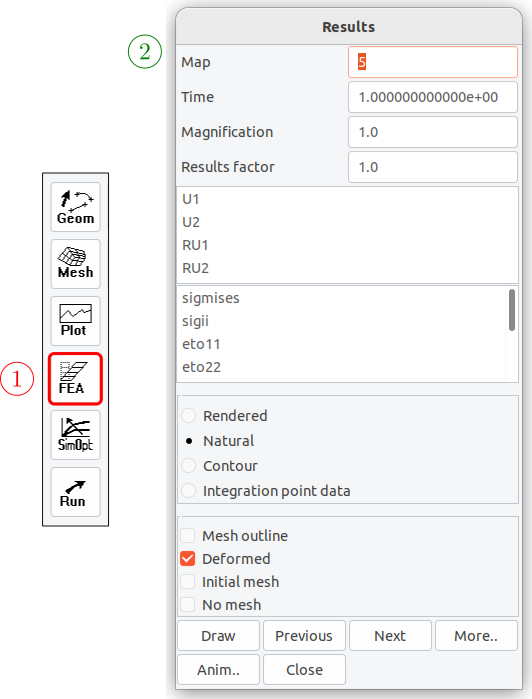
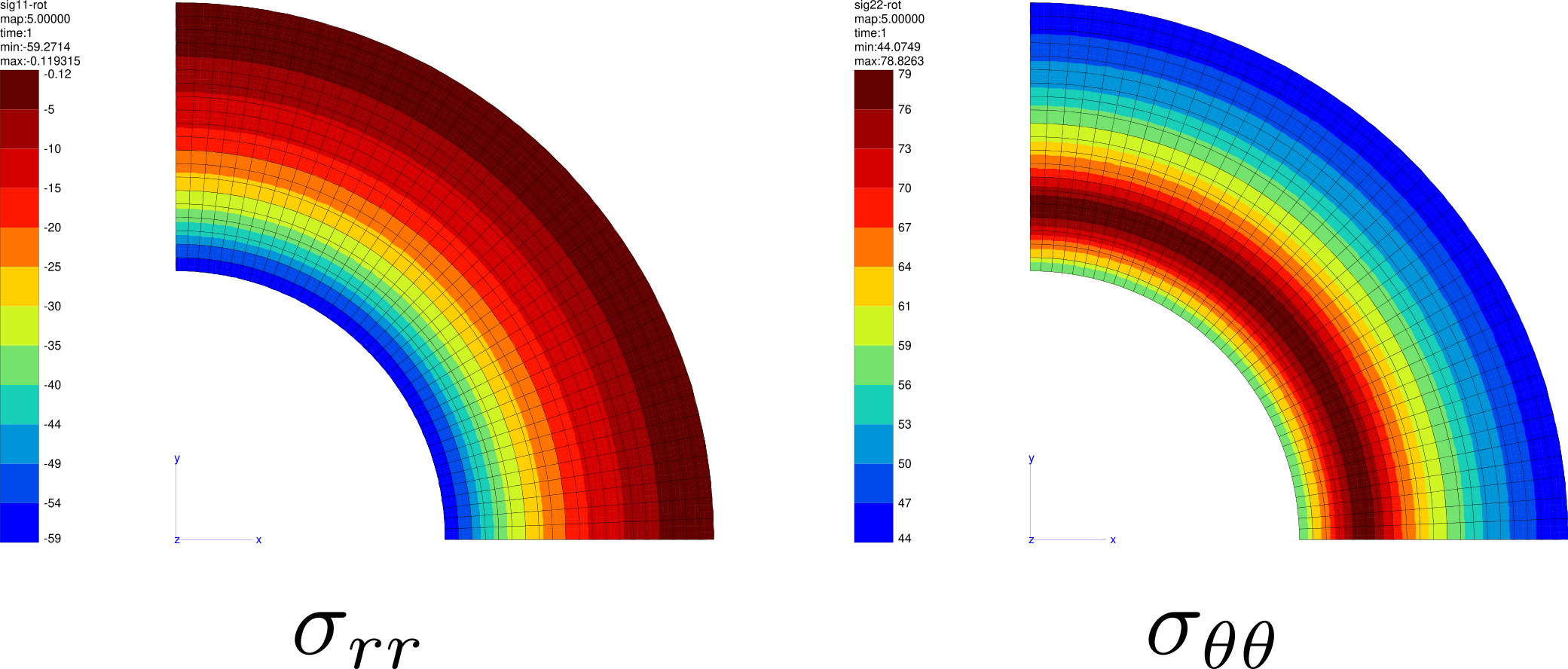
Some examples of calculation results
Displacement Results:
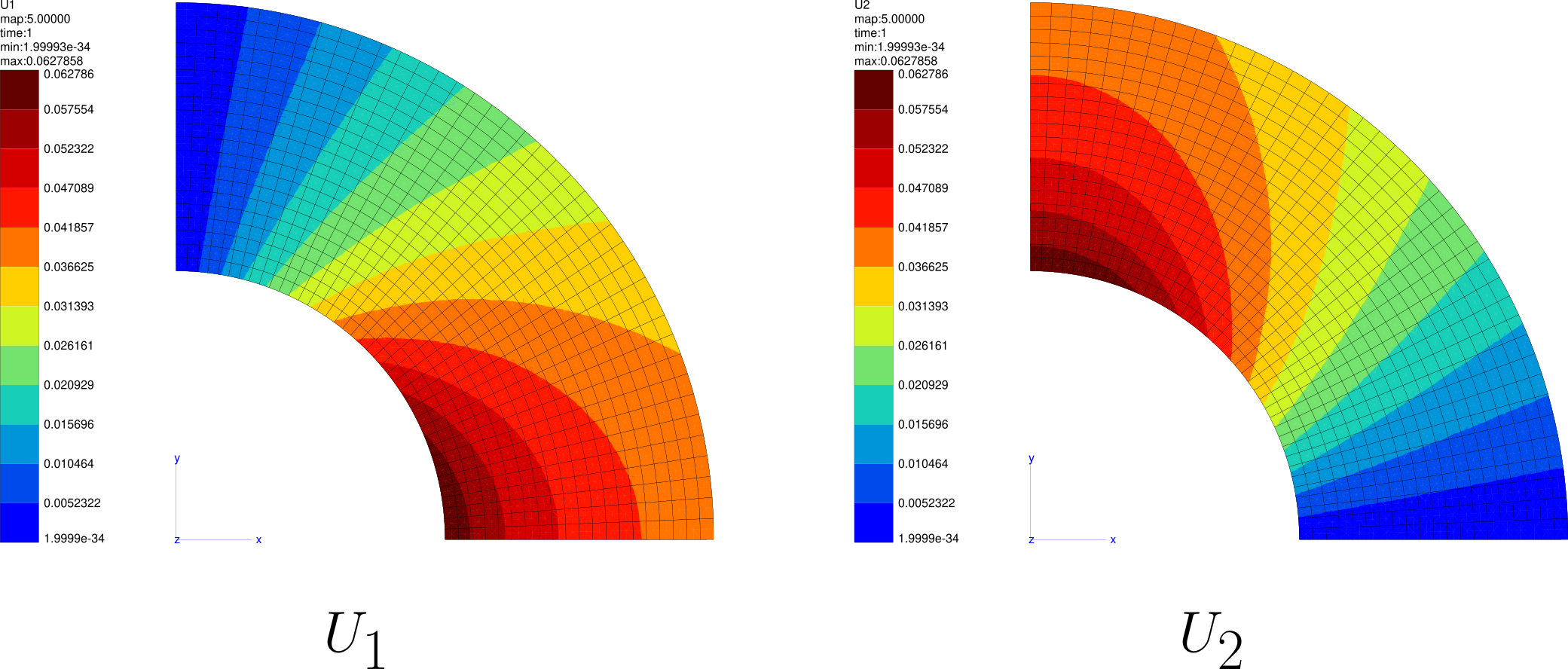
Strain Results:
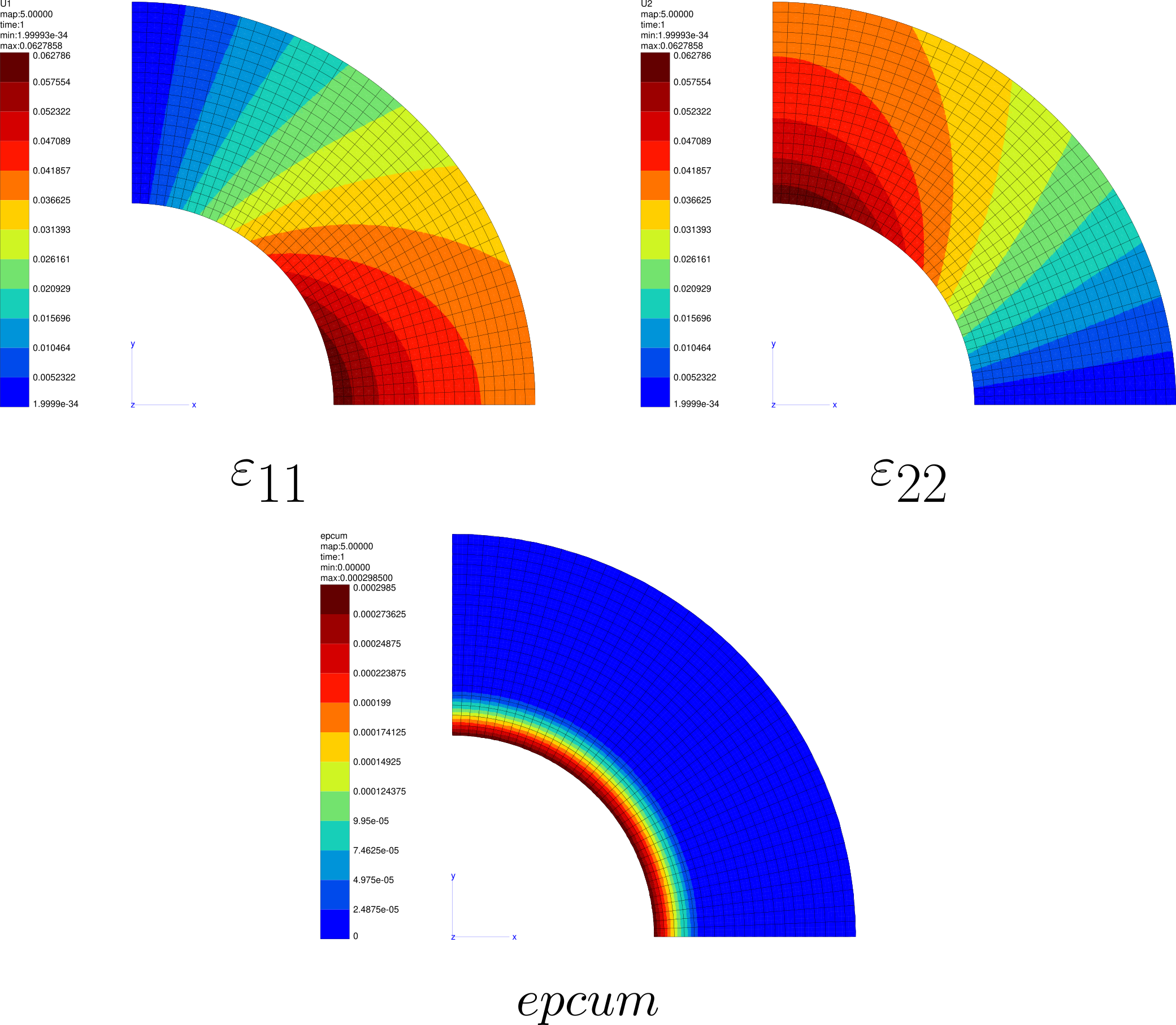
Stress Results:
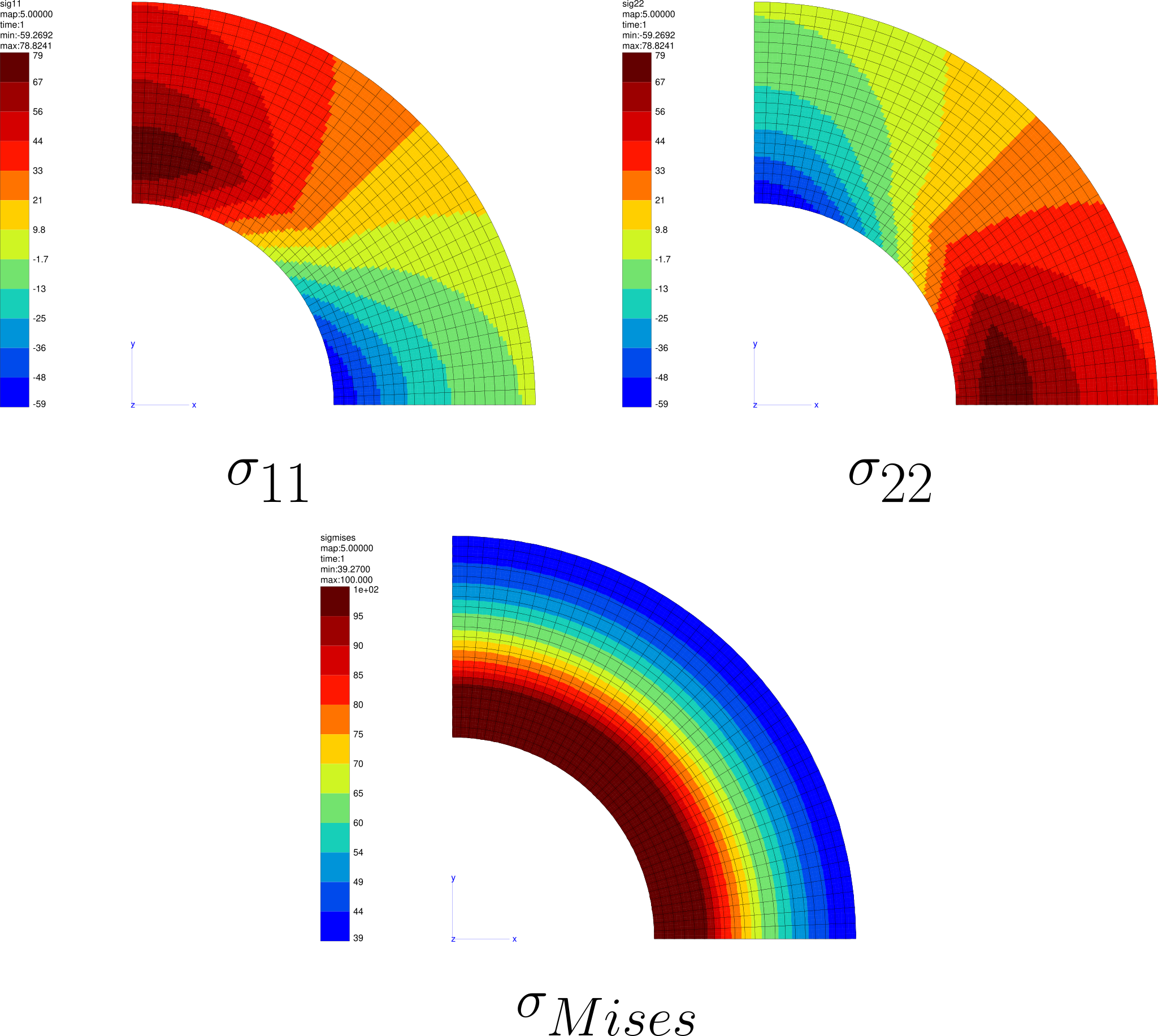
Strain Results:
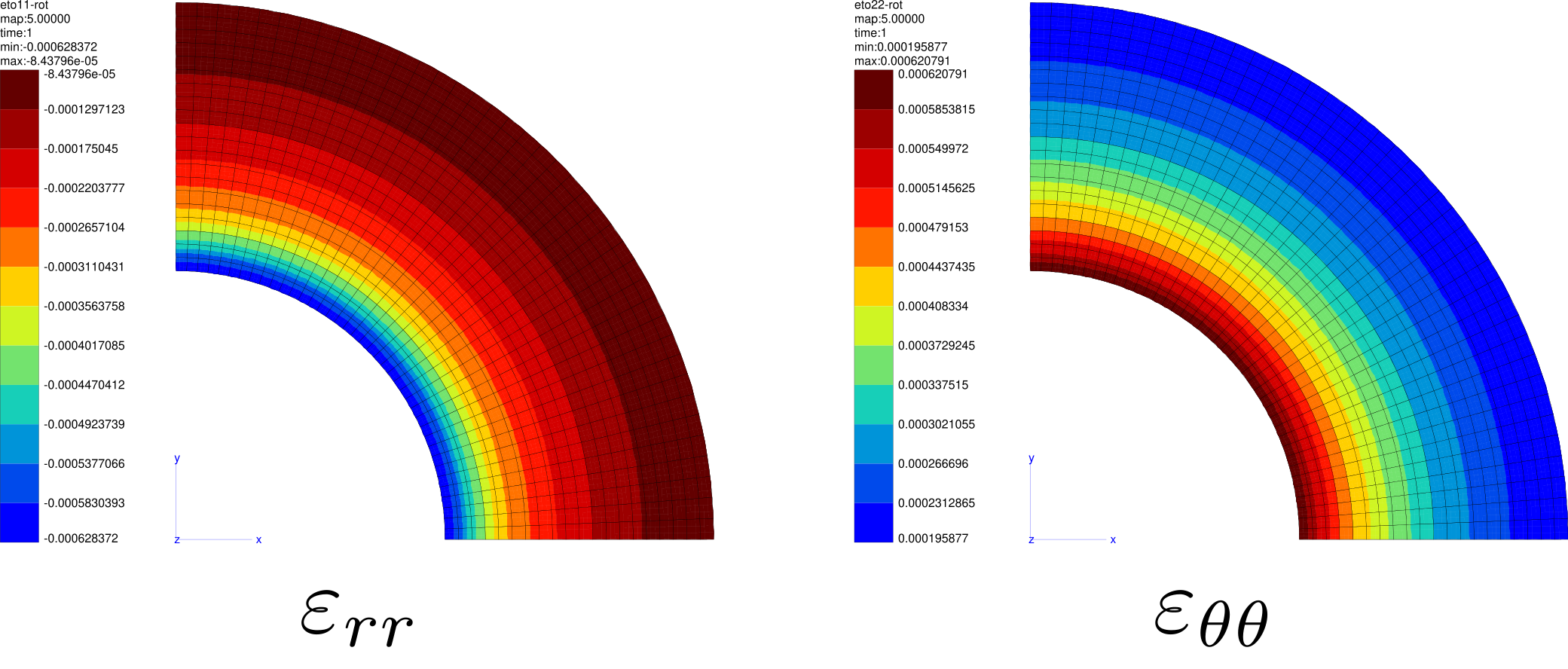
Stress Results:
Comparison with analytical results
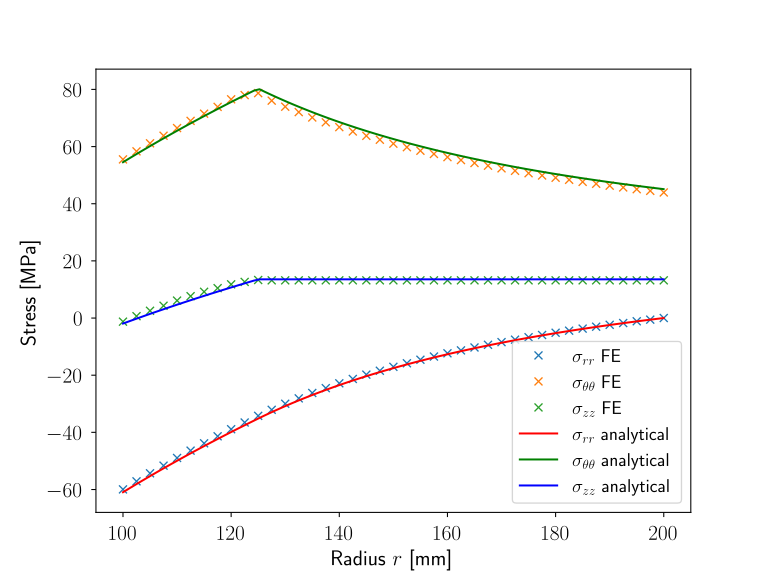
When tube having a well-defined yield point is strained by a radial pressure, the strains in the external portion of the tube will be elastic while in the yielded portion next to the internal portion of the tube they will be the sum of an elastic and plastic strain.
Let’s consider \(r=c\) refers to the interface between the plastic region and the elastic region. The position of the interface between plastic and elastic regions : \(c = 125 mm\).
The Finite element stresses function of the radius \(r\) can be extracted from the results
along the bottom liset and saved in a text file called sig-rot_bottom.txt using the
following post-processing.
The post-processing can be saved in a different file than tube.inp,
for example in a file called post.inp.
It will be launched using the terminal command Zrun -pp post.inp:
****post_processing
 ***suppress_p_on_post_files
 ***data_source Z7
  **open tube.ut
 ***precision 3

 ***global_post_processing
 **output_number 5
 **file node
 **nset bottom
 **process curve sig-rot_bottom.txt
  *liset bottom X sig11-rot sig22-rot sig33-rot
****return
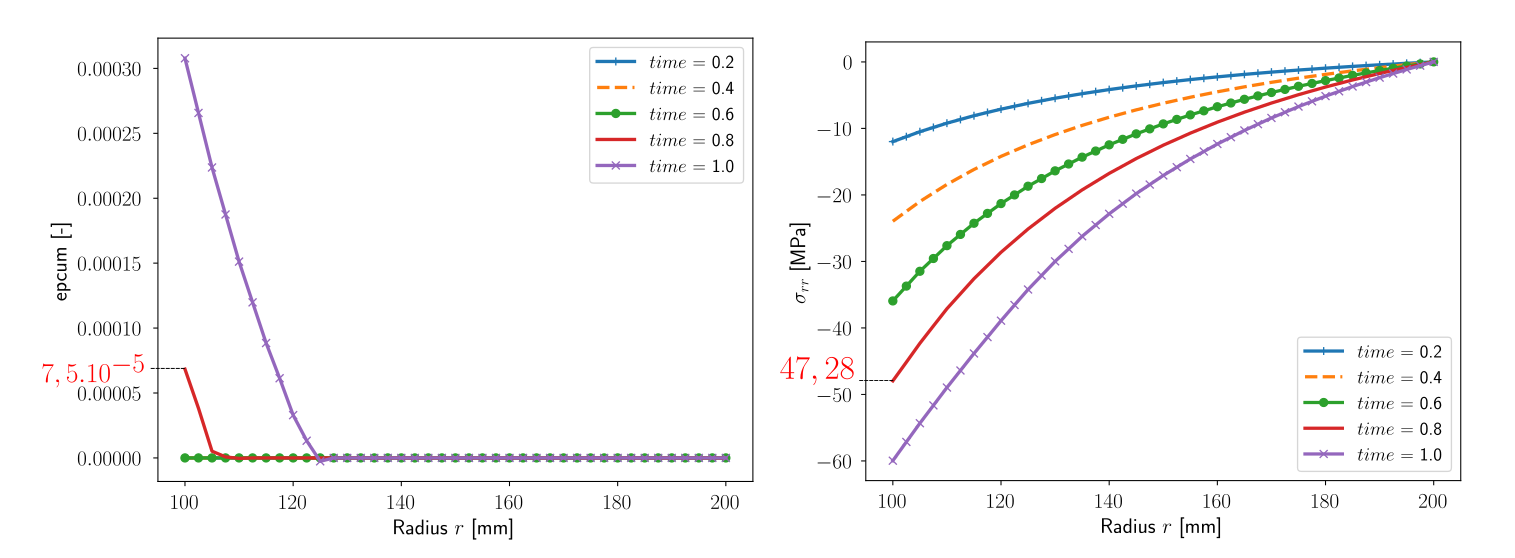
First yielding in a tube with an ideally plastic behavior under an internal pressure \(p = 60 MPa\) during the loading phase at the pressure \({p_{first-yield}}_{analytical}\):
The curves of cumulated plasticity \(epcum\) and radial stress \(\sigma_{rr}\) for
each increment can be extracted from the results along the bottom liset and saved in
different text files for each increment called
sig-rot_bottom_first-yield_1.txt … sig-rot_bottom_first-yield_5.txt
using the following post-processing.
The post-processing can be saved in a different file than tube.inp,
for example in a file called post_first-yield.inp.
It will be launched using the terminal command Zrun -pp post_first-yield.inp:
****post_processing
 ***suppress_p_on_post_files
 ***data_source Z7
  **open tube.utp
 ***precision 3

 ***global_post_processing
 **output_number 1
 **file node
 **nset bottom
 **process curve sig-rot_bottom_first-yield_1.txt
  *liset bottom X epcum sig11-rot

 ***global_post_processing
 **output_number 2
 **file node
 **nset bottom
 **process curve sig-rot_bottom_first-yield_2.txt
  *liset bottom X epcum sig11-rot

 ***global_post_processing
 **output_number 3
 **file node
 **nset bottom
 **process curve sig-rot_bottom_first-yield_3.txt
  *liset bottom X epcum sig11-rot

 ***global_post_processing
 **output_number 4
 **file node
 **nset bottom
 **process curve sig-rot_bottom_first-yield_4.txt
  *liset bottom X epcum sig11-rot

 ***global_post_processing
 **output_number 5
 **file node
 **nset bottom
 **process curve sig-rot_bottom_first-yield_5.txt
  *liset bottom X epcum sig11-rot

****return
Extension of problem to the 3D case#
Click on
\(\longrightarrow\) , then on extension. Enter the name of the elsetR, the distance300.0, the number of elements10and then confirm withOK. After that, click on to generate the 3D mesh.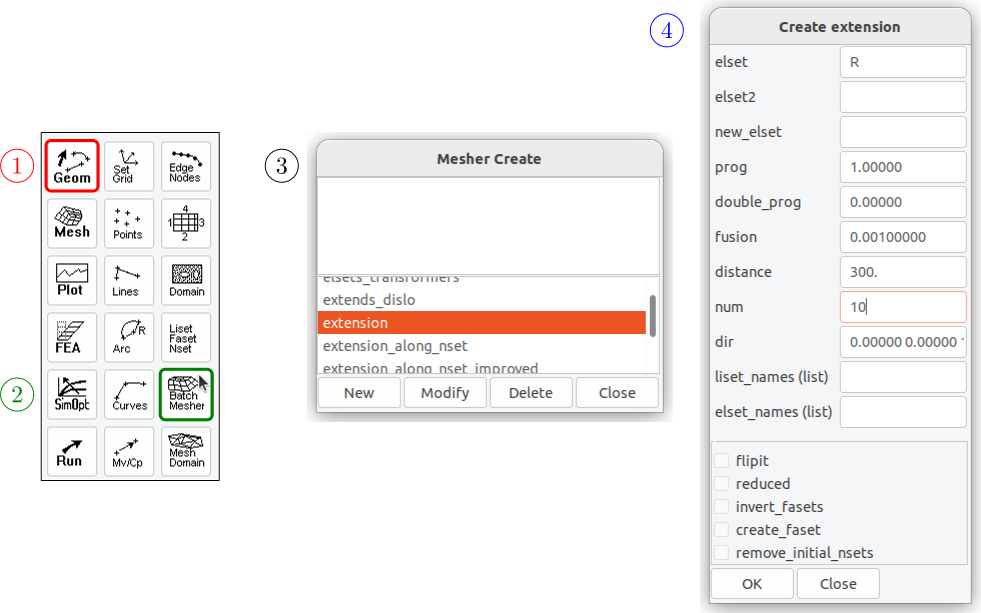
Alternatively, type the following key-words in a file called
mesher.inpin order to extrude the 2D geometry along the z axis for a distance of h = 300 mm divided into 10 elements.****mesher ***mesh tube_3D.geof **open tube.geof **extension *elset R *distance 300. *num 10 ****return
Type in a terminal in the location where you have the files of the problem (
.inp,.mat, etc) the commandZrun -m mesher.inp.A new 3D mesh is created called
tube_3D.geof, extra nsets of the existing ones will be created that has the same names with adding the suffix-ext.These extra nsets are the extrude of the 2D nsets along the z axis.
Add these new bsets from the created new nsets (see
Geometry creation) : inner_wall-ext, outer_wall-ext, bottom-ext, left-ext. To do this add the following lines after*num 10inmesher.inpfile :**bset_from_nset *nset inner_wall-ext **bset_from_nset *nset outer_wall-ext **bset_from_nset *nset bottom-ext **bset_from_nset *nset left-ext
Relaunch the final
mesher.inpfile in order to create the 3D mesh with the nsets and bsets using the commandZrun -m mesher.inp:****mesher ***mesh tube_3D.geof **open tube.geof **extension *elset R *distance 300. *num 10 **bset_from_nset *nset inner_wall-ext **bset_from_nset *nset outer_wall-ext **bset_from_nset *nset bottom-ext **bset_from_nset *nset left-ext **bset z300 *func z>299.999; **bset z0 *func z<0.001; ****return
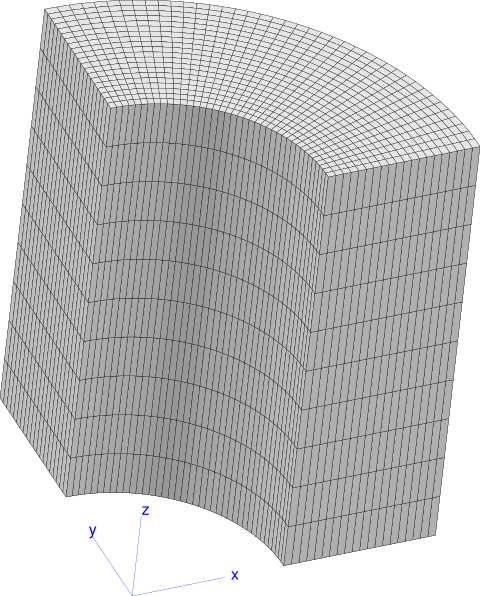
Copy the file
tube.inpto create a new filetube_3D.inp, modify these lines :***mesh plane_strain => ***mesh **file tube.geof => **file tube_3D.geof inner_wall -60.0000 tab => inner_wall-ext -60.0000 tab bottom U2 0.00000 => bottom-ext U2 0.00000 left U1 0.00000 => left-ext U1 0.00000
Add the following lines in the
***bc **impose_nodal_dofsection:z0 U3 0.00000 z300 U3 0.00000
Run the simulation using the command
Zrun tube_3D.inp, and visualise the results using the commandZmaster tube_3D.inp.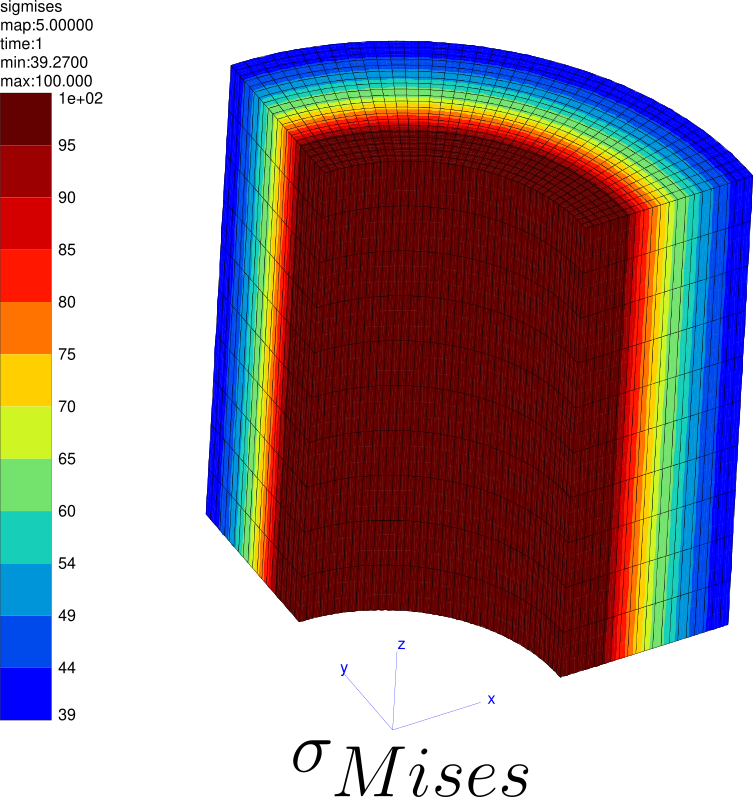
Downloads
Mesh files
Input files